
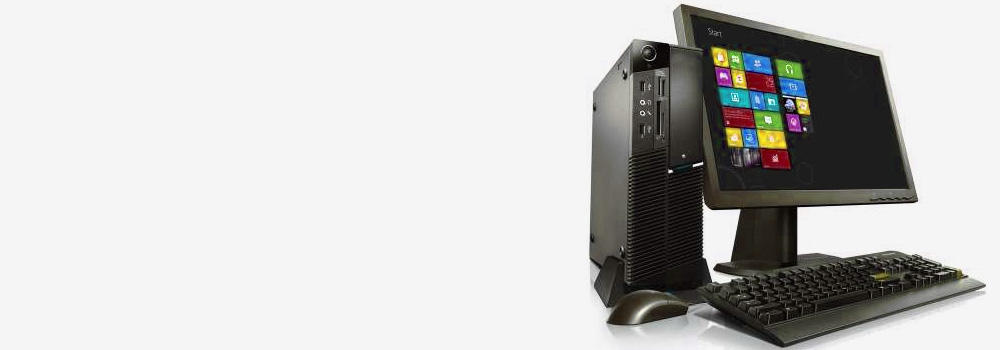






At Exeter Data Recovery, we offer specialist Lenovo hard drive data recovery services tailored to resolve both physical and logical faults affecting laptops, desktops, and all-in-one systems. With over 25 years of experience, our team has recovered data from thousands of Lenovo systems across home, business, education, and government environments.
We use industry-leading tools and forensic methodologies to recover critical files from damaged or inaccessible Lenovo hard drives, regardless of whether the failure was caused by accidental deletion, formatting errors, malware, or physical damage.
Top 15 Best-Selling Lenovo PCs and Laptops in the UK
We provide full support and recovery for all Lenovo PC and laptop models, including these top-selling devices:
- Lenovo ThinkPad X1 Carbon Gen 11
- Lenovo Yoga Slim 7i Pro X
- Lenovo IdeaPad 3 15ADA6
- Lenovo Legion 5 Pro
- Lenovo ThinkBook 14 Gen 4
- Lenovo IdeaPad Flex 5 14ALC05
- Lenovo ThinkCentre M70s SFF Desktop
- Lenovo IdeaCentre AIO 3i (All-in-One)
- Lenovo ThinkPad T14 Gen 3
- Lenovo Legion Tower 5i
- Lenovo ThinkPad L14 Gen 2
- Lenovo Yoga 9i 14 Gen 8
- Lenovo V15 G2 ITL
- Lenovo IdeaPad Gaming 3
- Lenovo ThinkStation P360 Tower
Top 30 Lenovo Hard Drive Data Recovery Faults – Detailed Technical Explanations
We handle a wide range of Lenovo hard drive failures. Below is a list of the 30 most common faults with technical recovery insights:
1. Accidental File Deletion
Files removed via system deletion or emptied Recycle Bin.
Recovery: Bit-level scan of unallocated sectors to identify file headers and footers; metadata reconstruction to restore file names.
2. Accidental Formatting
Drive formatted using Windows or third-party tools.
Recovery: Deep scan for lost partitions; restore file system entries from format-resistant metadata regions.
3. File System Corruption
Damaged NTFS, exFAT, or FAT32 structures.
Recovery: Rebuild volume boot record, MFT, or directory index; mount volume virtually and extract files safely.
4. Physical Drive Damage
Dropped laptop or desktop causing internal head crash or spindle failure.
Recovery: Head stack replacement or platter transplants; image drive for logical extraction.
5. Bad Sectors on Disk
Read retries, slow performance, or inaccessible files.
Recovery: Sector-by-sector cloning with read-time control; bypass unreadable sectors using firmware-level tools.
6. Unrecognised Disk
BIOS or OS cannot detect the drive.
Recovery: Power rail test, controller reset, firmware reinitialisation; clone disk if signal can be restored.
7. Read/Write Errors
Frequent I/O errors during operation.
Recovery: Use low-level imaging with retry strategies; isolate and rebuild bad sector maps.
8. Virus or Malware Infection
Ransomware, keyloggers, or data corruption.
Recovery: Isolate infected system; decrypt files (if key available), extract clean versions via image snapshot.
9. File Transfer Interruptions
Power loss or force-stop during file movement.
Recovery: Search temp and cache directories; recover orphaned file fragments.
10. Controller Failure (SATA/NVMe Interface)
SSD or HDD controller non-responsive.
Recovery: Replace controller board (with ROM transplant); attempt chip-off NAND access in SSDs.
11. Water or Liquid Damage
Spill incidents or flood exposure.
Recovery: Clean and dry components; address oxidation damage; use chip-off or head transplant if necessary.
12. Overheating
System shuts down during heavy use.
Recovery: Clone under temperature-controlled conditions; stabilise thermal environment during imaging.
13. Wear and Tear (SSD/NAND Degradation)
SSD write limits reached.
Recovery: Extract via NAND reader if controller fails; reconstruct translation layer (FTL) manually.
14. Unsupported File Systems
Drive formatted with Linux (EXT4) or macOS (APFS).
Recovery: Identify partition scheme; use cross-platform recovery tools to extract data in native format.
15. Electrical Damage (Power Surge)
Sudden current spike damages drive PCB.
Recovery: PCB replacement; ROM transfer; recover via firmware-safe mode or chip-level access.
16. Partition Table Corruption
Partition disappears or shows RAW.
Recovery: Rebuild MBR or GPT structure; scan for valid partition headers and backup tables.
17. Formatting in Unsupported Devices
Drives formatted in Smart TVs or media players.
Recovery: Scan for custom volume headers and unknown partition schemes; apply reverse engineering.
18. Overwritten Data
New files replace old sectors.
Recovery: Partial carving of fragmented data possible; restore files based on residual traces if not zeroed.
19. Bent or Broken SATA/USB Pins
Connectivity failure due to physical port damage.
Recovery: Micro-soldering of port or adapter connection; image immediately upon successful access.
20. Manufacturing Defects
Intermittent failures in specific series.
Recovery: Firmware updates or PCB swaps to stabilise; manufacturer-specific recovery protocols.
21. Failed System Update
Drive inaccessible post-Windows update.
Recovery: Recover rollback shadow copy; extract user profile and restore registry entries.
22. BitLocker-Encrypted Drives (With Key)
Drive unreadable without decryption.
Recovery: Recover using user-supplied recovery key; extract decrypted volume in secure environment.
23. Blue Screen of Death (BSOD) with Disk Error
System won’t boot due to drive failure.
Recovery: Mount disk externally, image in safe mode, bypass bad sectors and extract system partitions.
24. Clicking or Beeping HDD
Internal mechanical fault.
Recovery: Replace head assembly; stabilise platters and extract logical volume.
25. Stuck-in-Sleep SSDs (Power Loss State)
SSD appears dead after shutdown.
Recovery: Use voltage-pulse initialisation via controller tools; restore drive to read mode.
26. Slow Boot and Hanging at Logo
Corrupt system files or failing sectors.
Recovery: Clone system partition; repair boot files; restore user data from working image.
27. Inaccessible System Restore Points
System rollback fails.
Recovery: Extract data from System Volume Information; manually retrieve historical snapshots.
28. Drive Not Initialised (Disk Management)
Prompt to initialise in Windows.
Recovery: Bypass prompt; scan physical sectors for valid partition table and mountable volume.
29. Freezing or Crashing During File Access
SSD firmware instability.
Recovery: Access via safe power mode; image under controlled environment and recover stable data blocks.
30. No Media Present Error (USB/SATA)
Drive reports zero size.
Recovery: Controller may be in failure mode; bypass via chip-off or factory firmware access if possible.
Supported Lenovo Systems
We support data recovery across all Lenovo platforms, including:
- Lenovo ThinkPad, IdeaPad, Yoga, Legion, and V Series
- Lenovo ThinkCentre Desktops and ThinkStation Workstations
- Lenovo IdeaCentre All-in-Ones
- Lenovo Slim, Duet, and Hybrid PCs
Storage Types:
- 2.5″ SATA HDDs and SSDs
- M.2 SATA and NVMe SSDs
- eMMC onboard storage
- Hybrid drives and USB backup solutions
File Systems Supported:
- NTFS, exFAT, FAT32, HFS+, APFS, EXT3/4
Why Choose Exeter Data Recovery for Lenovo Systems?
- 25+ years of Lenovo-specific recovery experience
- Forensic-grade hardware imaging and chip-off tools
- Expertise in both Windows and cross-platform file systems
- Secure, GDPR-compliant processes
- Free diagnostics and detailed recovery reports
- Optional expedited turnaround (48–72 hours)
Contact Exeter Data Recovery Today
If your Lenovo PC or laptop has experienced data loss due to hardware failure, formatting, or logical corruption, our professional engineers are here to help. We deliver fast, safe, and proven solutions for Lenovo hard drive data recovery.
📞 Freephone: 0800 689 0668
📍 Exeter – Serving Devon and Nationwide